


New Introduction: Why OpenDocs Changes Everything for Beginners
Starting your journey with technical documentation and visual modeling can feel overwhelming. Between learning diagramming standards, mastering documentation tools, and keeping everything synchronized, new users often struggle to find their footing. Visual Paradigm OpenDocs was built with you in mind—a beginner-friendly, AI-powered platform that removes the complexity and lets you focus on what matters: communicating ideas clearly.
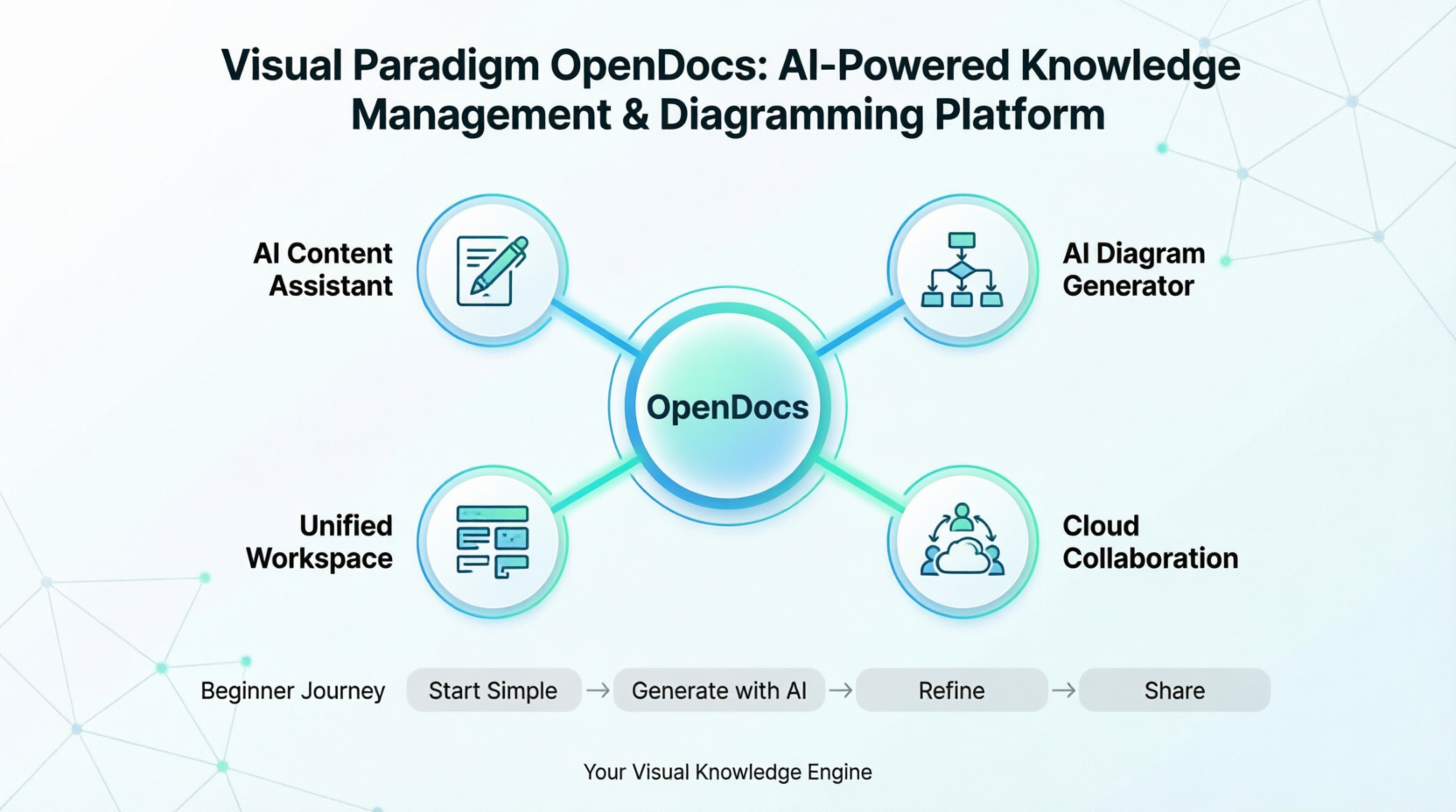
Whether you’re a student learning software design, a new business analyst documenting processes, or a developer creating your first system architecture, OpenDocs provides an intuitive, all-in-one workspace where your words and visuals work together seamlessly. Powered by artificial intelligence, the platform helps you generate content, create professional diagrams from simple descriptions, and organize knowledge—all without switching between multiple applications.
This comprehensive beginner’s guide walks you through everything you need to know to get started with OpenDocs, from your first document to advanced AI-assisted diagramming. No prior experience required—just curiosity and a willingness to learn.
Chapter 1: What Is OpenDocs? Your First Steps
Understanding the Platform
OpenDocs is Visual Paradigm’s web-based, AI-powered knowledge management platform designed to unify technical documentation with visual modeling. Think of it as your personal “visual knowledge engine”—a single place where you can write documentation, create diagrams, and let AI help you along the way.
Unlike traditional tools that force you to jump between a word processor and a diagramming app, OpenDocs brings everything together in one browser-based workspace. This means less time managing files and more time creating valuable content.
Why Beginners Love OpenDocs
✅ No installation required – Works in any modern web browser
✅ AI assistance built-in – Get help writing and diagramming from day one
✅ Intuitive interface – Clean, distraction-free design focused on your content
✅ Learn as you go – Start simple, then explore advanced features at your own pace
✅ Cloud-synced – Access your work from any device, anywhere
Platform Overview at a Glance
| Feature | What It Means for You |
|---|---|
| Web-Based | Open docs from your laptop, tablet, or office computer—no setup needed |
| AI-Native | Artificial intelligence helps you write, summarize, and create diagrams |
| Unified Workspace | Text and diagrams live together in the same document |
| Cloud Platform | Your work is saved automatically and accessible from anywhere |
Chapter 2: Getting Started – Your First 10 Minutes
Step 1: Accessing OpenDocs
- Open your preferred web browser (Chrome, Firefox, Safari, or Edge)
- Navigate to your Visual Paradigm account portal
- Select OpenDocs from your available tools
- You’re in! No downloads, no configuration—just start creating
Step 2: Creating Your First Document
- Click + New Document in your Knowledge Tree
- Give your document a clear title (e.g., “My First Project Overview”)
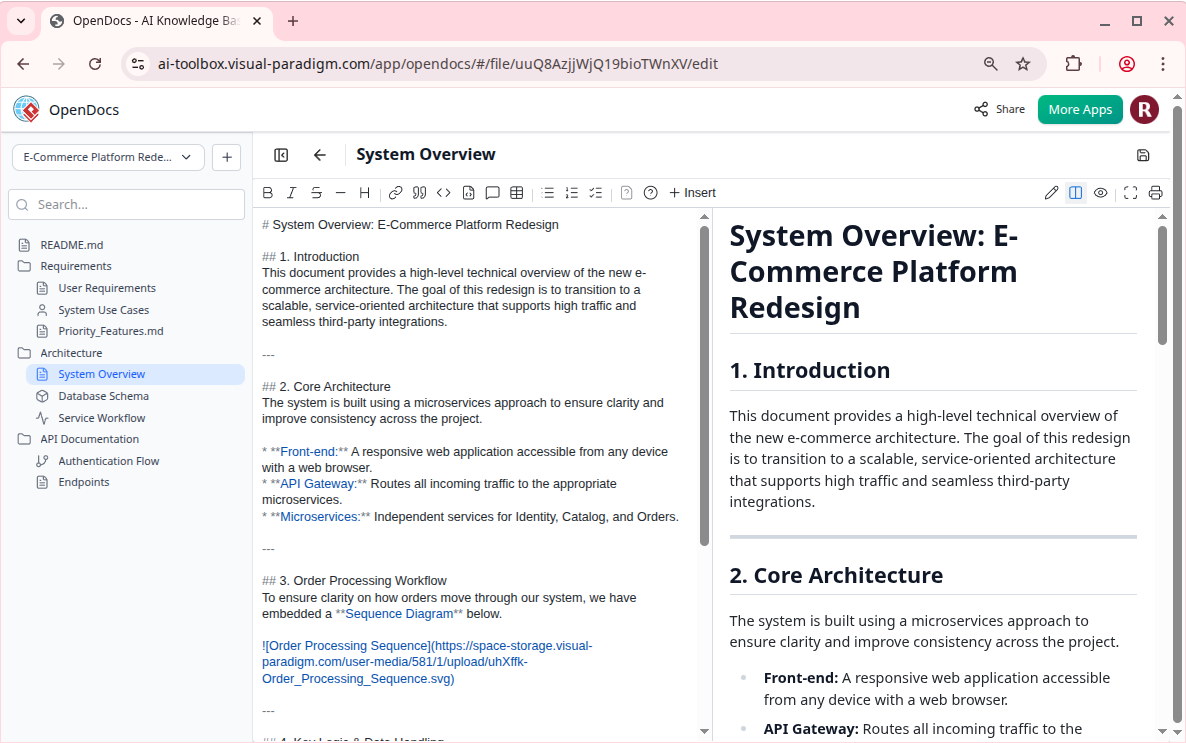
- Start typing in the editor
- Use the formatting toolbar for headings, lists, or code blocks as needed
Step 3: Adding Your First AI-Generated Diagram
- Place your cursor where you want a diagram
- Click the AI Diagram button or type
/diagramto open the AI prompt - Describe what you need in plain English:
- “Create a simple flowchart for a login process”
- “Generate a class diagram for a library management system”
- Watch as OpenDocs creates a professional diagram in seconds
- Click Insert to embed it directly in your document
Step 4: Organizing with the Knowledge Tree
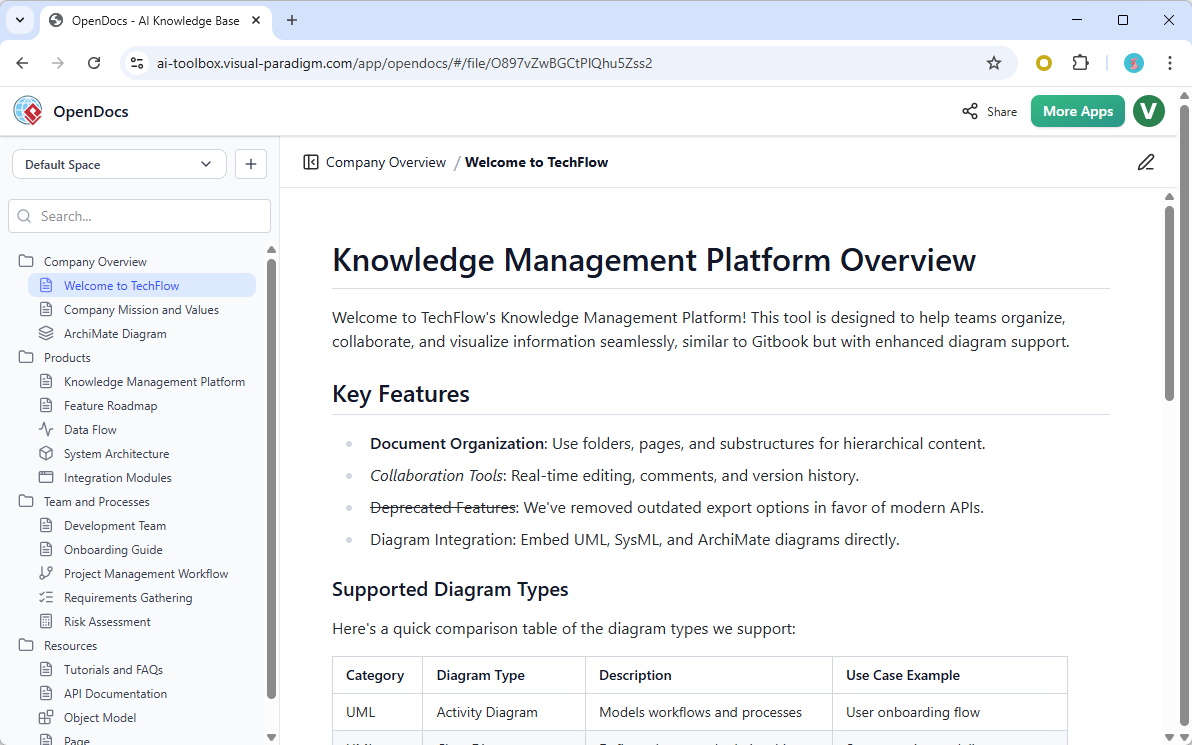
OpenDocs uses a hierarchical folder structure called the Knowledge Tree to keep your content organized:
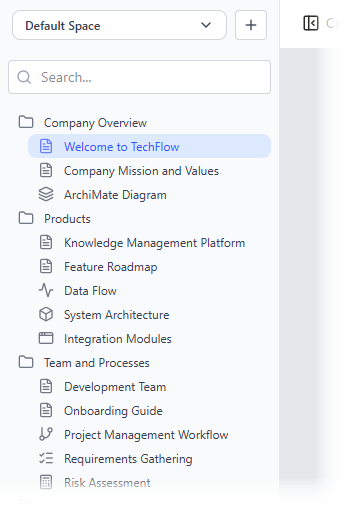
Beginner Tips:
- Create folders for different projects or topics
- Drag and drop documents to reorder them
- Use descriptive names so you can find things later
- Start simple—you can always reorganize as your collection grows
Chapter 3: Core Features Every Beginner Should Know
1. The Intelligent Editor: Write with Confidence
What You Can Do:
- Format text with headings, bold, italics, and lists
- Insert code blocks with syntax highlighting
- Add tables, images, and embedded diagrams
- See exactly how your document will look as you type
Pro Tip for Beginners: Use the toolbar buttons for formatting.
2. Integrated Diagramming: Visuals Without the Learning Curve
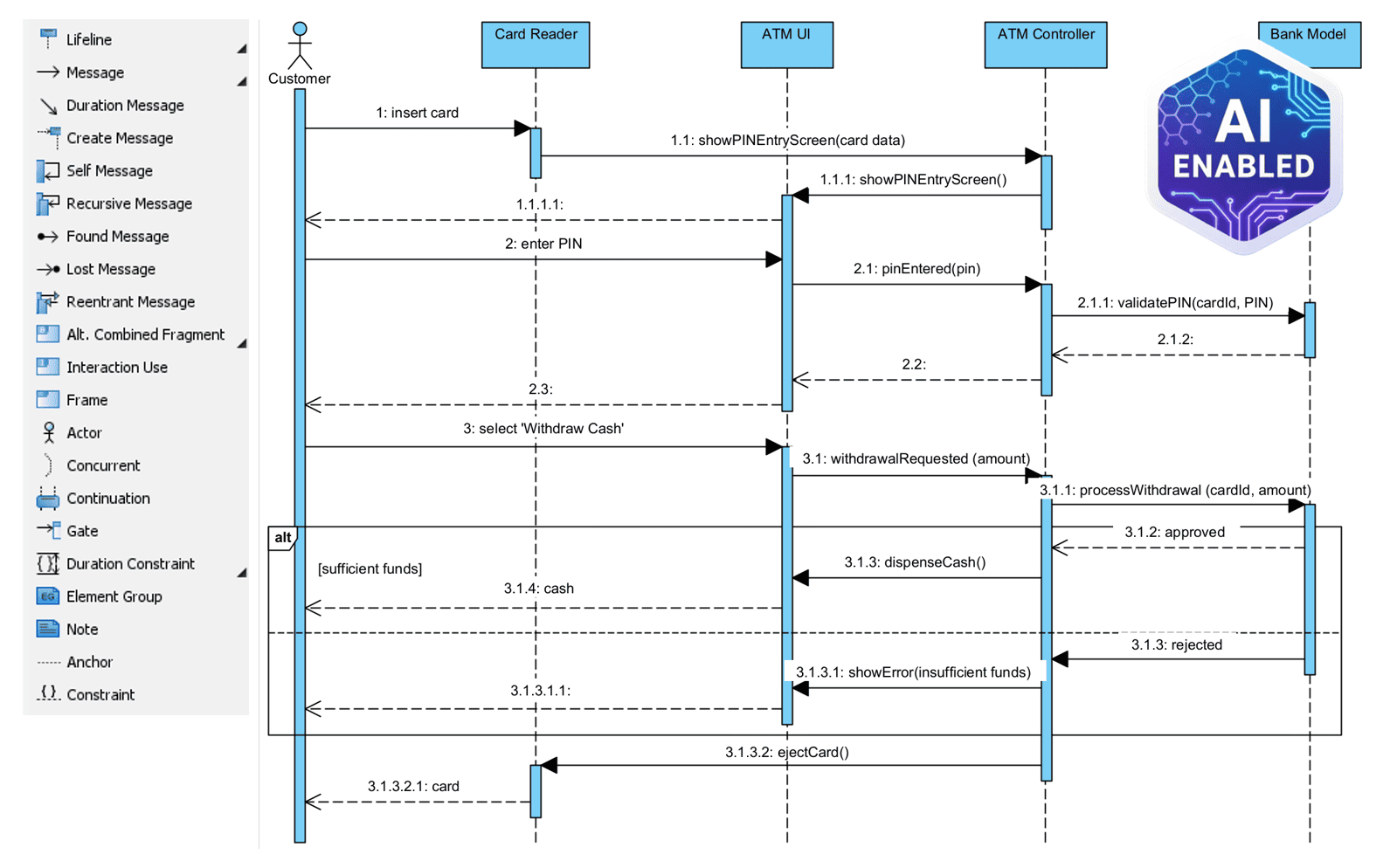
One of OpenDocs’ greatest strengths for beginners is its ability to create professional diagrams without requiring expertise in modeling languages.
Supported Diagram Types for Beginners:
🔹 Flowcharts – Perfect for mapping processes, decisions, and workflows
🔹 Mind Maps – Great for brainstorming and organizing ideas
🔹 Basic UML – Start with simple class or use case diagrams
🔹 ERDs – Visualize database relationships with ease
🔹 PERT Charts – Plan project timelines visually
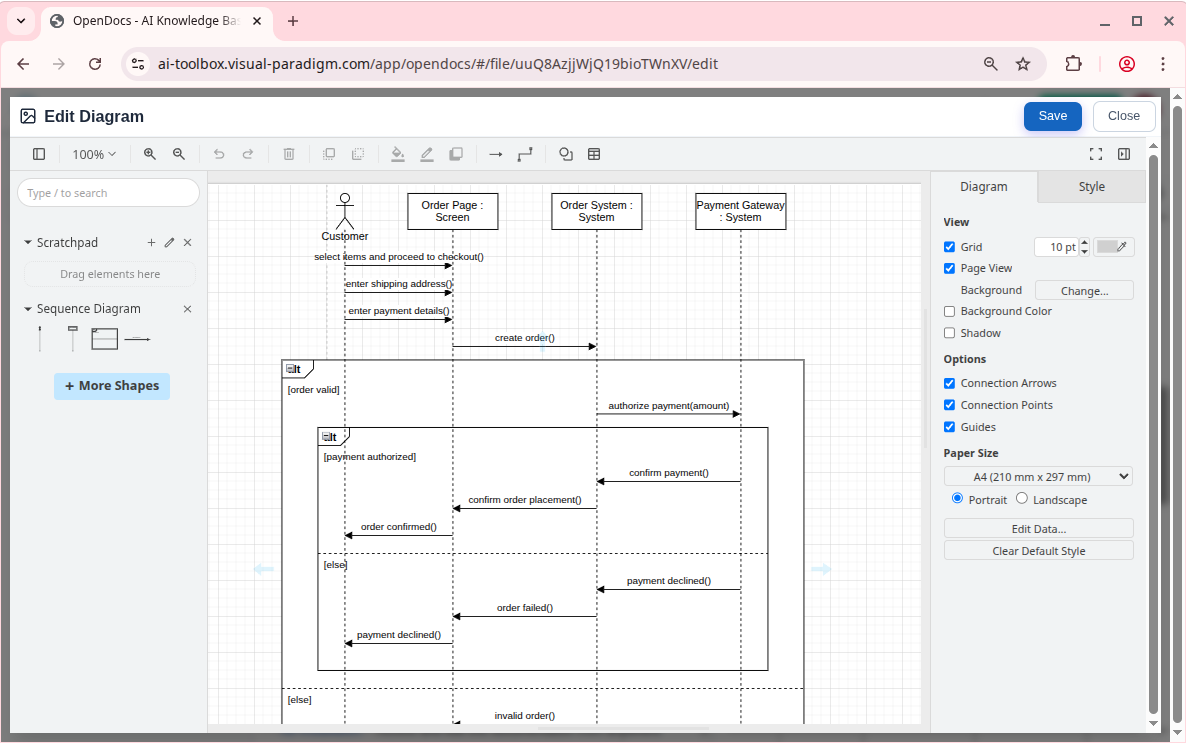
Beginner Workflow:
- Describe your idea in plain language
- Let AI generate the initial diagram
- Use the visual editor to tweak labels, colors, or layout
- Embed directly in your document—no exporting or importing needed
3. AI Content Assistant: Your Writing Partner
The built-in AI Assistant helps you overcome writer’s block and improve documentation quality:
Three Ways Beginners Can Use AI:
📝 Draft Generation
Stuck on how to start? Provide bullet points or an outline, and let AI expand them into full paragraphs.
🔍 Summarization & Simplification
Paste complex technical content, and ask AI to create a simpler version for non-technical stakeholders.
❓ Contextual Q&A
Ask questions about your own documentation, and AI will find and synthesize answers from your Knowledge Tree.
Chapter 4: AI-Powered Diagram Generation – From Idea to Visual in Seconds
The One-Shot Creation Process
Creating diagrams with OpenDocs’ AI is as simple as describing what you need:
Step-by-Step for Beginners:
- Describe – Type a plain English prompt:
- “Create a flowchart for our user registration process”
- “Generate a UML class diagram for an e-commerce product”
- “Make a mind map of features for a mobile app”
- Generate – Click generate and watch AI create a complete, professionally styled diagram in seconds
- Refine – Make adjustments using:
- Drag-and-drop editing for layout changes
- Text editing to update labels or descriptions
- AI suggestions to add missing elements or improve clarity
Popular Beginner-Friendly Diagram Examples
| What You Want to Show | Example Prompt | Best Diagram Type |
|---|---|---|
| User signup flow | “Flowchart for new user registration with email verification” | Flowchart |
| App feature brainstorming | “Mind map of features for a fitness tracking app” | Mind Map |
| Database structure | “ERD for a blog with users, posts, and comments” | Entity Relationship Diagram |
| Project timeline | “PERT chart for launching a website in 8 weeks” | PERT Chart |
| System components | “Class diagram for a library system with Book, Member, and Loan” | UML Class Diagram |
The AI Diagram Pipeline: Chat to Document
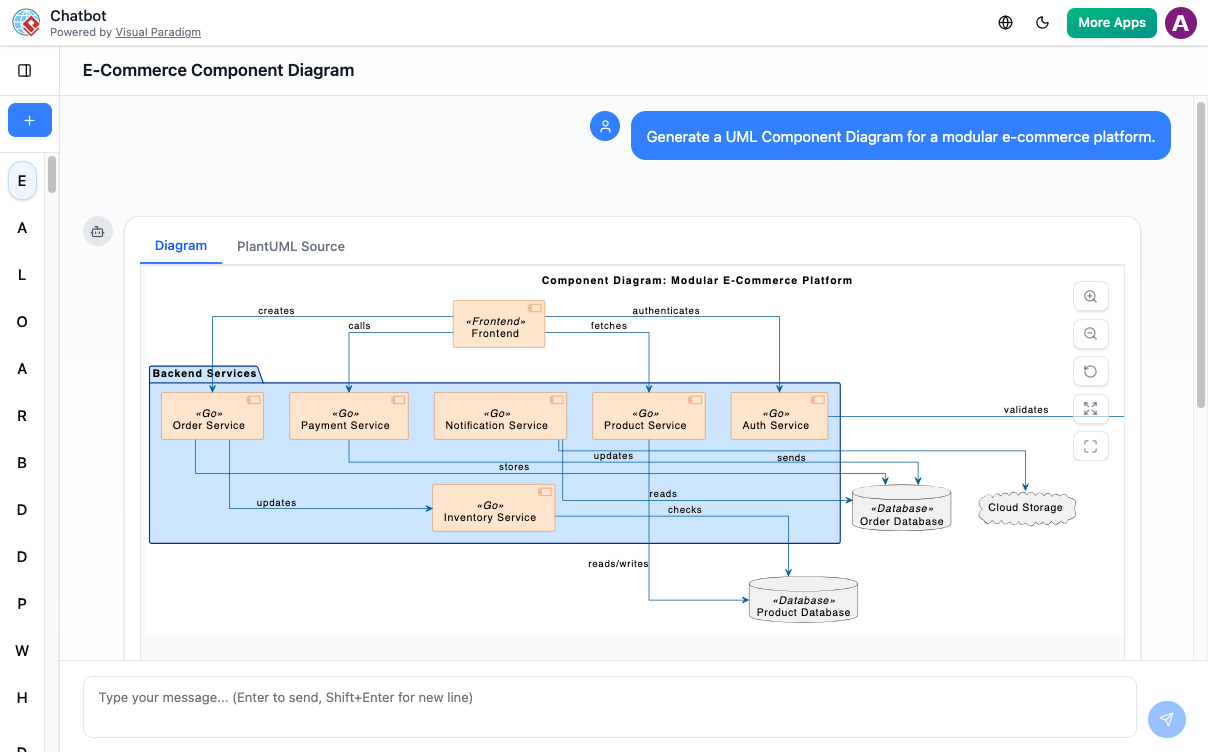
OpenDocs integrates with the Visual Paradigm AI Chatbot for an even smoother workflow:
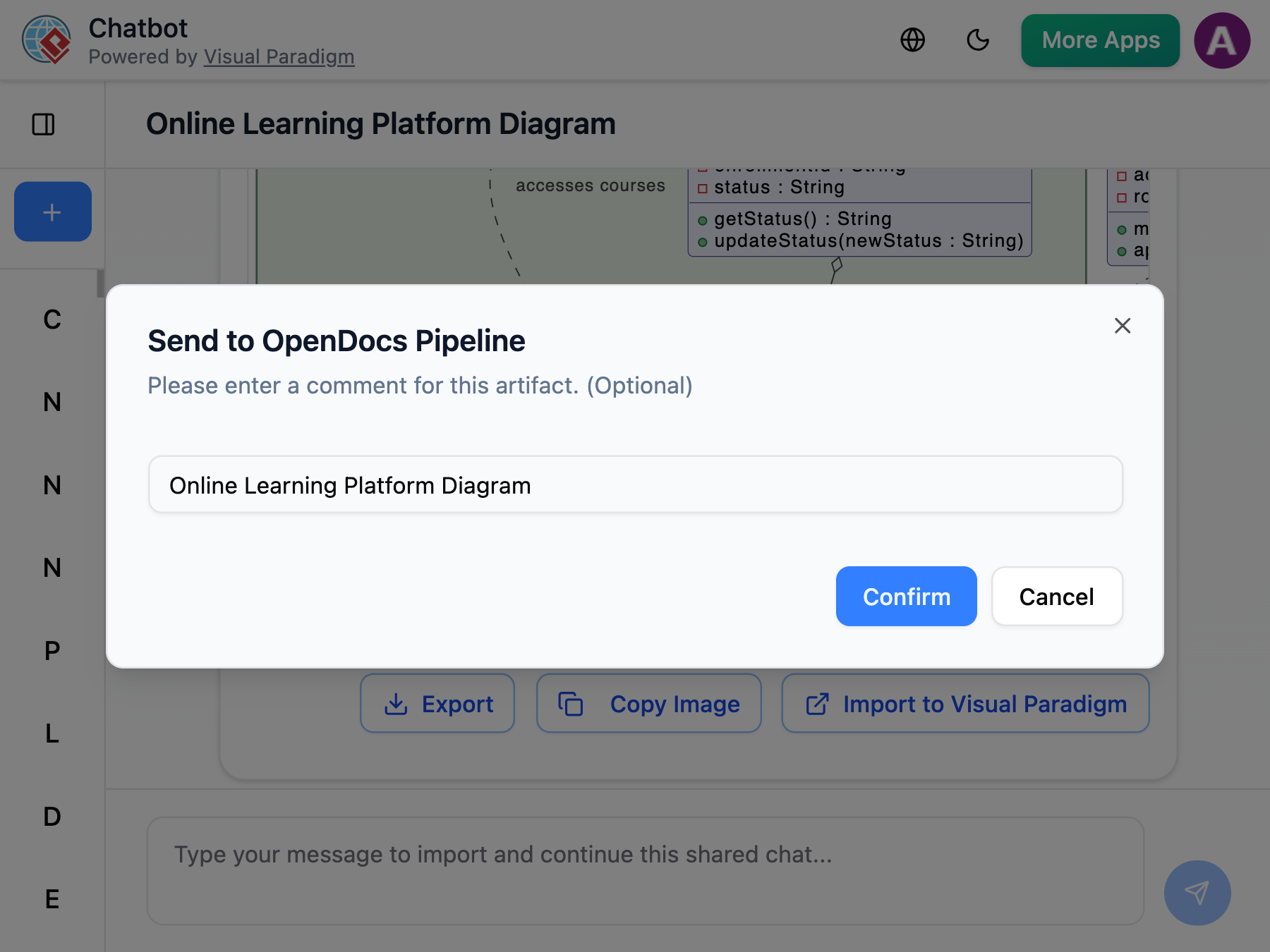
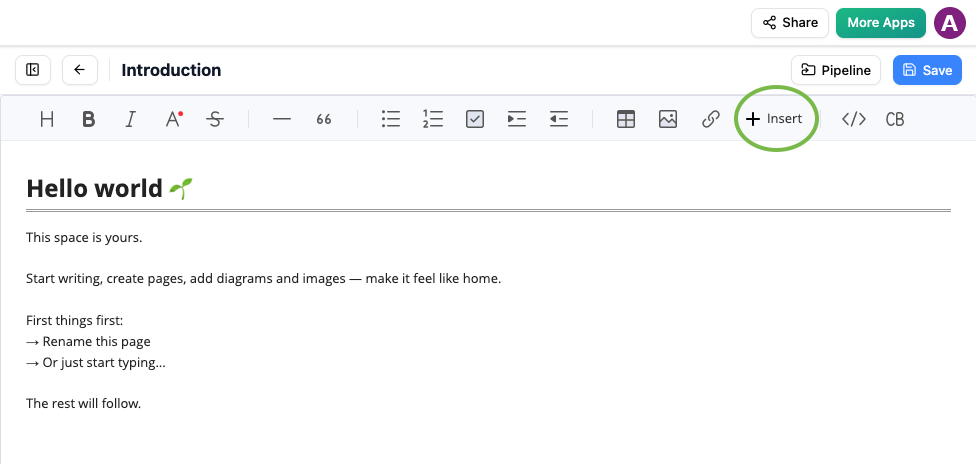
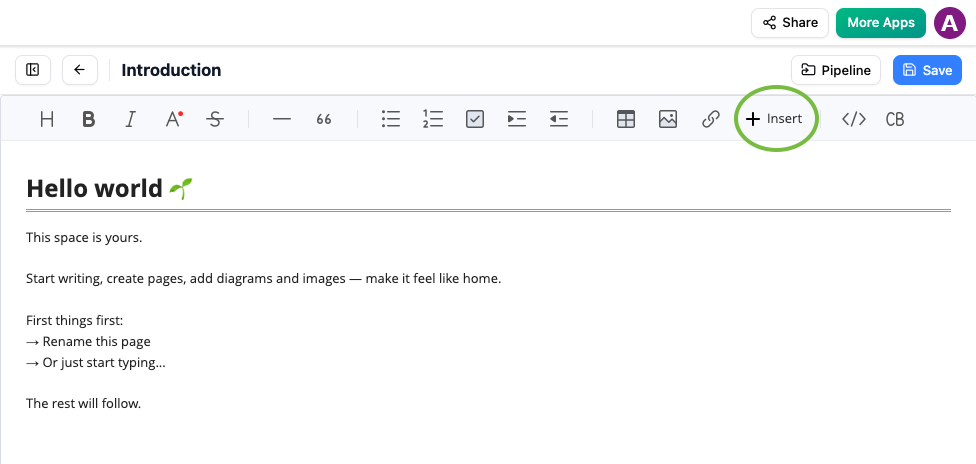
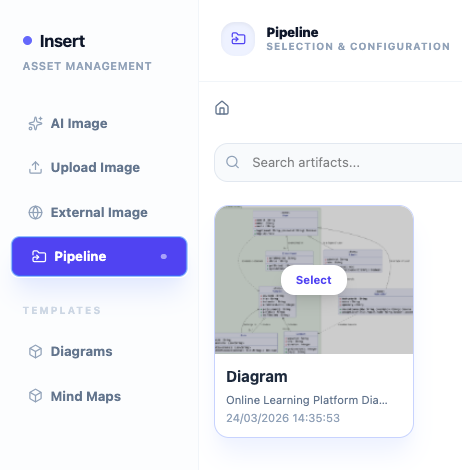
How It Works:
- Chat with the AI Chatbot to brainstorm or refine diagram ideas
- When you’re happy with a diagram, click Send to OpenDocs
- The diagram appears in your OpenDocs Pipeline tab, ready to insert
- Click to embed it directly into your document—fully editable and integrated
Chapter 5: Organizing and Sharing Your Work
Building Your Knowledge Tree
Think of your Knowledge Tree as a digital bookshelf for your projects:
Beginner Organization Strategy:
📁 My Projects/
  ├── 📁 Learning/
  │   ├── 📄 UML Basics.md
  │   └── 📄 Flowchart Examples.md
  ├── 📁 Work/
  │   ├── 📁 Project Alpha/
  │   │   ├── 📄 Requirements.md
  │   │   └── 📄 Architecture Diagrams.md
  │   └── 📁 Project Beta/
  └── 📁 Personal/
      └── 📄 Idea Brainstorm.md
Tips for Success:
- Start with broad categories, then add subfolders as needed
- Use consistent naming conventions (e.g., “Project Name – Document Type”)
- Don’t over-organize early on—flexibility is key when learning
Sharing Made Simple
Need to show your work to a teammate, instructor, or stakeholder? OpenDocs makes sharing effortless:
One-Click Sharing:
- Open the document or folder you want to share
- Click the Share button
- Choose access level (view-only or editable)
- Copy the link and send it—no account required for viewers
Benefits for Beginners:
- Share progress without worrying about file versions
- Get feedback directly on your documentation
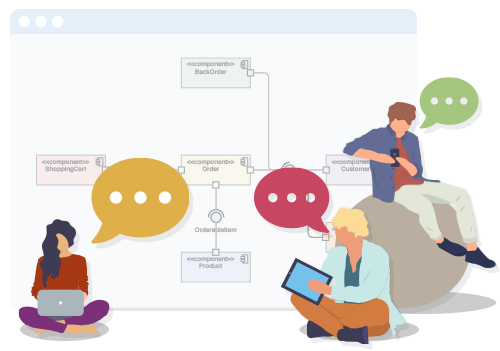
- Collaborate in real-time with classmates or colleagues
- Present work professionally without exporting to PDF
Real-Time Collaboration
Working on a group project? Multiple people can edit the same OpenDocs document simultaneously:
✨ See others’ cursors and changes in real time
✨ Track version history to review or revert changes
✨ Add comments to specific sections for discussion
✨ Assign tasks or action items within documents
Chapter 6: Practical Projects to Build Your Skills
Project 1: Document a Simple Process
Goal: Create a flowchart and accompanying documentation for a everyday process (e.g., making coffee, submitting a form, onboarding a new team member).
Steps:
- Create a new document titled “Process Documentation: [Your Process]”
- Write a brief introduction explaining the process
- Use AI to generate a flowchart: “Create a flowchart for [process] with decision points and outcomes”
- Embed the diagram and add explanatory text below each step
- Use AI summarization to create a one-paragraph executive summary
- Share with a peer for feedback
Project 2: Design a Basic System
Goal: Model a simple software system using UML class diagrams and descriptive documentation.
Steps:
- Create a document: “System Design: Library Management”
- List the main entities (Book, Member, Loan, etc.)
- Prompt AI: “Generate a UML class diagram for a library system with Book, Member, and Loan classes, including key attributes and relationships”
- Refine the diagram: add methods, adjust visibility, clarify relationships
- Write documentation explaining each class and how they interact
- Use AI Q&A to test your understanding: “What is the relationship between Member and Loan in this system?”
Project 3: Plan a Mini-Project
Goal: Use PERT charts and breakdown structures to plan a small project (e.g., organizing an event, launching a blog, building a portfolio site).
Steps:
- Create a project folder: “Project Plan: [Your Project]”
- Generate a Work Breakdown Structure: “Create a breakdown structure chart for launching a personal blog”
- Generate a PERT chart: “Create a PERT chart showing dependencies for blog launch tasks”
- Add timeline estimates and responsible parties
- Use the document to track progress and update stakeholders
Chapter 7: Tips, Tricks, and Best Practices for Beginners
🚀 Accelerate Your Learning
Start Small, Scale Up
Begin with simple diagrams and short documents. As you gain confidence, explore advanced features like nested folders, AI refinement, and collaborative editing.
Use AI as a Learning Tool
Don’t just accept AI output—ask it to explain why it structured a diagram a certain way, or request alternative approaches. This turns every generation into a learning opportunity.
Leverage Templates
Many OpenDocs features include starter templates. Use them as learning aids to understand structure and best practices before creating from scratch.
🔍 Avoid Common Beginner Pitfalls
❌ Over-complicating early diagrams – Start with 5-7 elements max; add complexity later
❌ Skipping documentation – Even simple diagrams benefit from explanatory text
❌ Ignoring organization – Spend 2 minutes naming folders clearly; save hours later
❌ Not using version history – Before major changes, note the version or create a backup copy
💡 Pro Tips You’ll Appreciate Later
✨ Keyboard Shortcuts – Learn 3-5 essential shortcuts (e.g., Ctrl+B for bold) to speed up editing
✨ AI Prompt Crafting – Be specific: “Create a flowchart with start/end nodes, 3 decision points, and error handling” yields better results than “Make a flowchart”
✨ Diagram Styling Consistency – Pick a color scheme or style early and apply it across documents for professional cohesion
Chapter 8: Next Steps – Growing Beyond the Basics
Explore Advanced Features When You’re Ready
Once you’re comfortable with the fundamentals, consider exploring:
🔹 AI-Driven TOGAF Guide – Structured guidance for enterprise architecture frameworks
🔹 Custom Diagram Templates – Save and reuse your favorite diagram styles
🔹 Advanced Search – Use filters and tags to find content across large Knowledge Trees
🔹 Integration Workflows – Connect OpenDocs with other Visual Paradigm tools for end-to-end modeling
Join the Community
Learning is faster together. Connect with other OpenDocs users to:
- Share tips and templates
- Ask questions and get feedback
- Discover creative use cases
- Stay updated on new features and AI capabilities
Keep Learning
Visual Paradigm regularly updates OpenDocs with new AI features and diagram types. Bookmark the official resources page and check release notes to stay current with the latest capabilities.
New Conclusion: Your Journey Starts Now
Welcome to the future of technical documentation—and congratulations on taking your first steps with Visual Paradigm OpenDocs. What once required mastering multiple complex tools can now be accomplished in a single, intuitive workspace powered by artificial intelligence.
As a beginner, your greatest advantage is curiosity. Every diagram you generate, every document you write, and every AI prompt you refine builds your expertise. OpenDocs is designed to grow with you: start with simple flowcharts and basic documentation today, and tomorrow you might be modeling enterprise architectures or collaborating with global teams in real time.
Remember: the goal isn’t perfection on day one. It’s progress. Let AI handle the heavy lifting while you focus on clarity, creativity, and communication. Share your work early, iterate based on feedback, and don’t hesitate to experiment—every “mistake” is a learning opportunity in this flexible, forgiving environment.
The barrier between idea and execution has never been lower. Your knowledge, visualized and articulated, is now just a prompt away. Open your browser, open OpenDocs, and start creating.
Your visual knowledge journey begins now. 🚀
References
- OpenDocs AI-Powered Knowledge Platform Launch: Official announcement of Visual Paradigm’s OpenDocs platform featuring AI-powered knowledge management and integrated diagramming capabilities.
- OpenDocs Features Overview: Comprehensive feature list and capabilities of Visual Paradigm’s OpenDocs knowledge management platform.
- OpenDocs Review: Transforming Team Collaboration: Independent review examining how OpenDocs enhances team collaboration through AI-powered documentation and diagramming.
- AI Breakdown Structure Chart Maker: Feature update introducing AI-powered breakdown structure chart generation within OpenDocs.
- OpenDocs AI Tool Documentation: Technical documentation for OpenDocs AI features and capabilities.
- AI Entity Relationship Diagram Generation: Feature release for AI-powered ERD creation in OpenDocs.
- AI Flowchart Generator Update: Enhancement update for AI-powered flowchart generation capabilities.
- AI Diagram to OpenDocs Pipeline: Integration feature enabling seamless transfer of AI-generated diagrams from chatbot to OpenDocs.
- AI Deployment Diagram Generator: Feature introduction for AI-powered deployment diagram creation.
- Visual Paradigm 18.0 Release: AI-Powered Features: Major release announcement detailing comprehensive AI-powered features across Visual Paradigm platform.
- OpenDocs February-March 2026 Update Guide: Comprehensive guide covering the latest OpenDocs updates and AI-powered visual knowledge engine features.
- Harnessing Visual Paradigm’s AI for Diagram Generation: 2026 Guide: Ultimate guide to leveraging Visual Paradigm’s AI capabilities for professional diagram generation.
- AI State Diagram Generator Update: Feature update for AI-powered UML state machine diagram generation.
- AI Diagram Generator Overview: General overview of Visual Paradigm’s AI diagram generation capabilities.
- Visual Paradigm AI Diagram Generation Features Review: Comprehensive review of AI diagram generation features across Visual Paradigm platform.
- AI EPC Diagram Generator: Feature release for AI-powered Event-Driven Process Chain diagram creation.
- AI PERT Chart Generator: Feature introduction for AI-powered PERT chart generation for project management.
- AI Diagram Generation Features: Overview of AI diagram generation capabilities across Visual Paradigm products.
- Visual Paradigm AI Chatbot: Documentation for Visual Paradigm’s AI chatbot and its integration with diagram generation.
- Visual Paradigm Product Editions: Product comparison and licensing information for Visual Paradigm editions and AI feature availability.
- Visual Paradigm All Features: Complete feature list for Visual Paradigm’s all-in-one platform.

