


Introduction: Transform Static Content into Engaging Experiences
In today’s digital landscape, documentation needs to do more than just inform—it needs to engage. Whether you’re creating technical manuals, business reports, training materials, or client portfolios, the way you present information directly impacts how effectively it’s received and retained.
Visual Paradigm’s integrated ecosystem—combining Flipbook Maker, Bookshelves, OpenDocs, and WordPress integration—offers a powerful workflow for transforming static documents into dynamic, interactive experiences. This comprehensive guide walks you through every step: from creating visually stunning flipbooks with AI assistance, organizing them into curated bookshelves, building a robust technical knowledge base in OpenDocs, and seamlessly publishing your content to WordPress or any website.
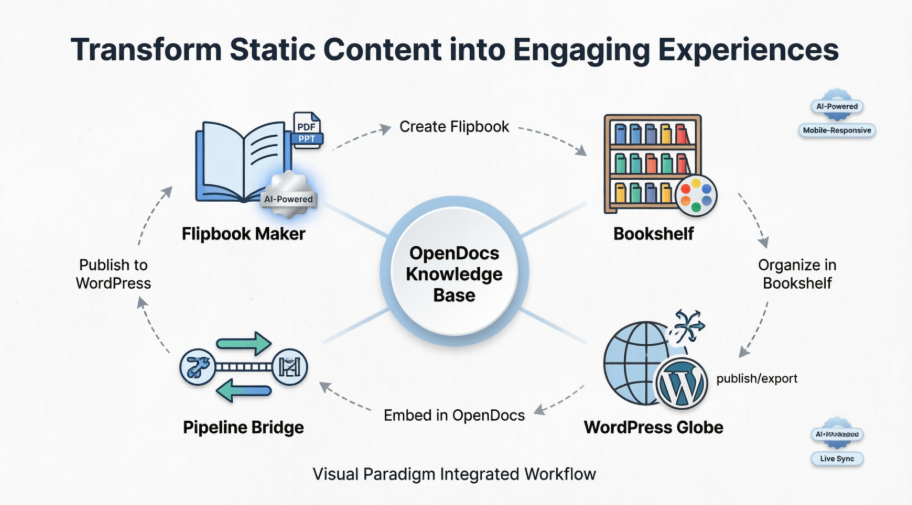
By the end of this guide, you’ll have the knowledge to build professional, interactive documentation that captivates your audience and scales with your needs.
Understanding the Visual Paradigm Ecosystem
Before diving into the how-to, let’s clarify the key components:
| Tool | Purpose | Key Benefit |
|---|---|---|
| Visual Paradigm Online | Create diagrams, flipbooks, and visual content | Drag-and-drop editor with AI assistance |
| Flipbook Maker | Convert PDFs, Word, PPT into interactive flipbooks | Realistic page-flipping with multimedia support |
| Bookshelves | Organize multiple flipbooks into curated collections | Themed, branded containers for publication management |
| OpenDocs | AI-powered knowledge management platform | Rich text editor + diagramming + pipeline integration |
| Pipeline | Bridge between Visual Paradigm tools and OpenDocs | One-click sharing of artifacts and flipbooks |
| WordPress Integration | Publish OpenDocs content directly to WordPress | Static snapshots or live-synced pages |
Part 1: Building Beautiful Flipbooks with AI
Step 1: Start with Your Source Material
You can create a flipbook in three ways:
- Convert existing files: Upload PDFs, Word documents, or PowerPoint slides
- Design from scratch: Use the drag-and-drop editor in Visual Paradigm Online
- AI Generation: Let the AI Flipbook Generator create outlines, content, and illustrations
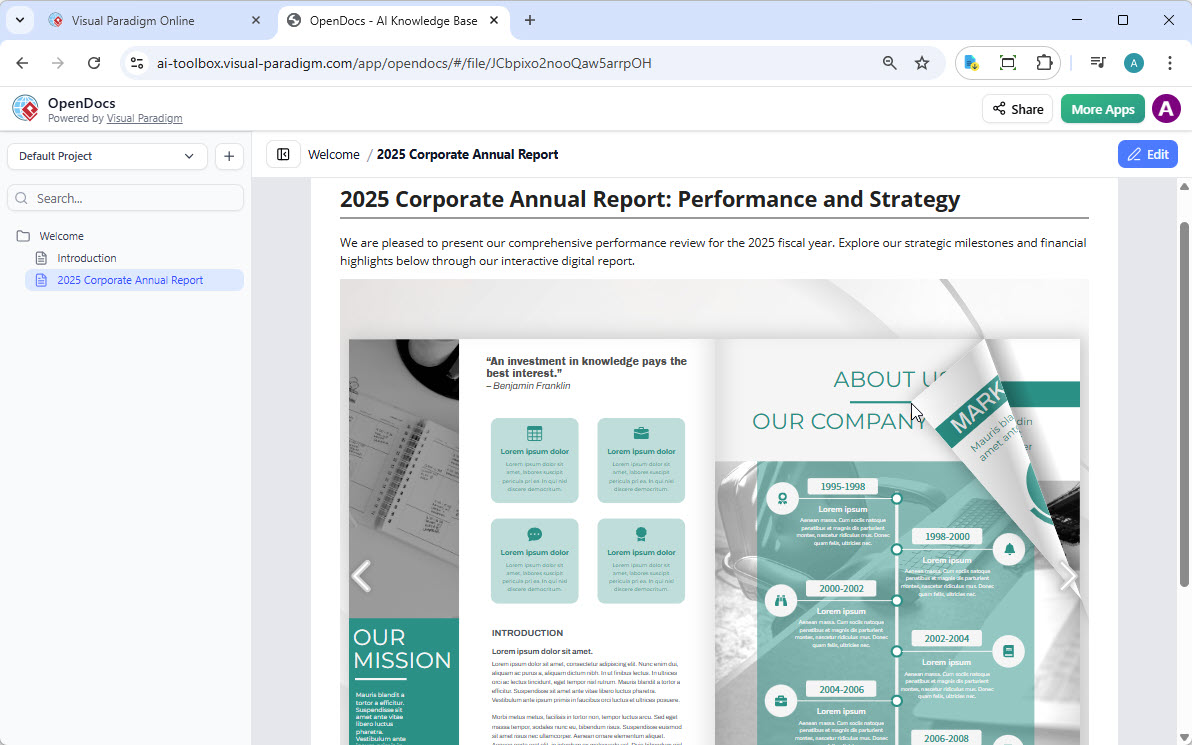
Step 2: Enhance with Interactive Elements
Make your flipbook engaging by adding:
- Embedded videos and audio clips
- Clickable hyperlinks and navigation buttons
- Realistic page-flipping sound effects
- Custom transitions and animations
Step 3: Apply Professional Branding
Customize your flipbook to match your identity:
- Upload custom cover designs
- Select color themes and background patterns
- Add your logo and corporate typography
- Configure mobile-responsive layouts
Pro Tip: Use the AI assistant to suggest art styles that match your brand voice—whether professional, playful, or minimalist.
Part 2: Organizing Content with Bookshelves
A bookshelf acts as a virtual container to display and manage a collection of multiple publications in a single categorized view.
Creating and Publishing a Bookshelf
- Navigate to Shelf in your Visual Paradigm Online workspace
- Click Create New Bookshelf and give it a descriptive name
- Add your flipbooks to the shelf by dragging them from your library
- Customize the shelf appearance:
- Choose from pre-built themes (Business, Nature, Tech, etc.)
- Upload custom background images
- Configure layout density and preview style
- Click the Pipeline icon at the top right to publish to OpenDocs
Why Bookshelves Matter: Instead of sharing 10 separate flipbook links, you share one curated bookshelf URL—making navigation intuitive and branding consistent.
Part 3: Creating a Technical Knowledge Base in OpenDocs
OpenDocs is an intelligent knowledge management platform that combines rich text editing with professional diagramming capabilities.
Setting Up Your Knowledge Base Structure
- Launch OpenDocs: Visit OpenDocs
- Create a Space: Organize content by project, department, or audience
- Build Page Hierarchy:
📁 Technical Documentation
├── 📄 Getting Started Guide
├── 📁 API Reference
│   ├── 📄 Authentication
│   ├── 📄 Endpoints
│   └── 📄 Error Codes
├── 📁 Architecture Diagrams
└── 📁 Tutorials
Enrich Pages with Visual Content
- Use the built-in page editor for clean, structured text
- Insert diagrams directly from Visual Paradigm Desktop or Online via Pipeline
- Embed flipbooks and bookshelves for interactive tutorials
- Add AI-generated illustrations to clarify complex concepts
Part 4: Integrating Flipbooks & Bookshelves into OpenDocs
Embedding a Flipbook
- Open your workspace page in Visual Paradigm Online
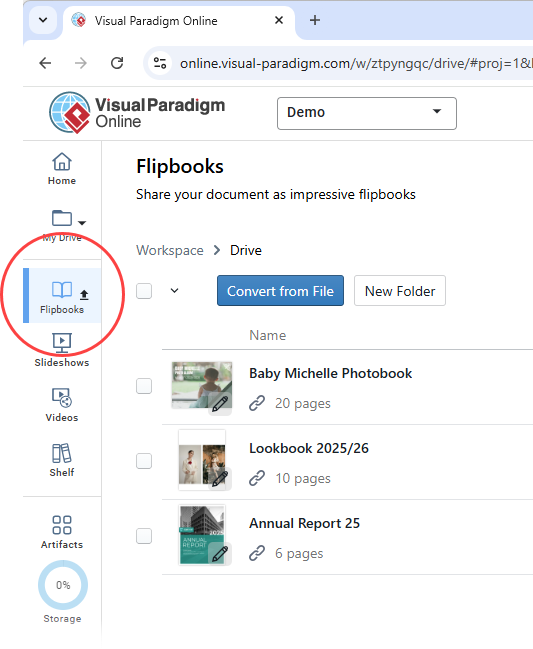
- Select Flipbooks from the left-hand menu to view your library
- Locate the flipbook you wish to share and click More… on the right side
- Select Send to OpenDocs Pipeline
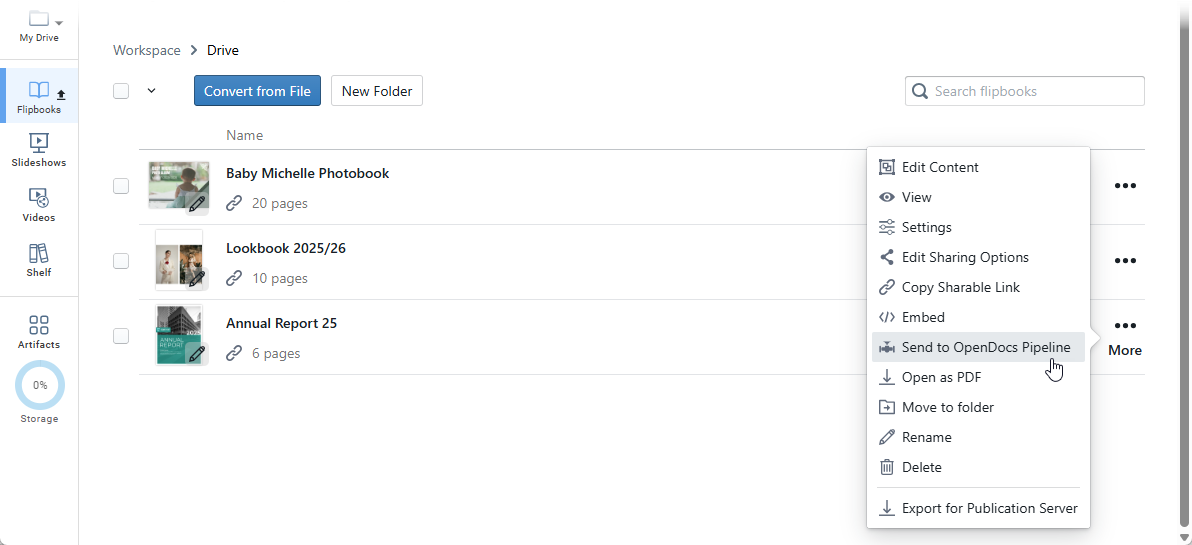
- (Optional) Enter a comment regarding this share and click OK to proceed
To insert in OpenDocs:
- Navigate to the page in OpenDocs where you want to embed the book
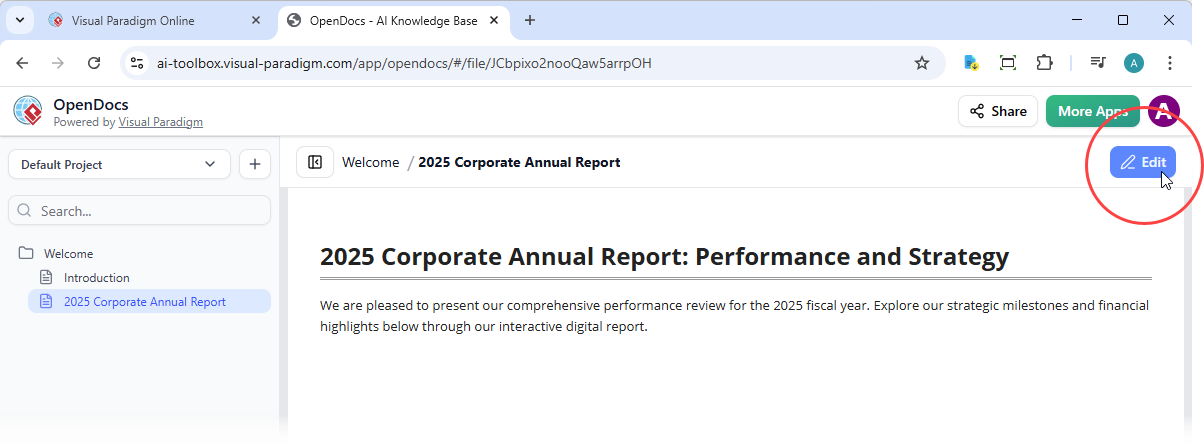
- Click Edit at the top right of the screen
- Position your cursor exactly where you want the flipbook to appear
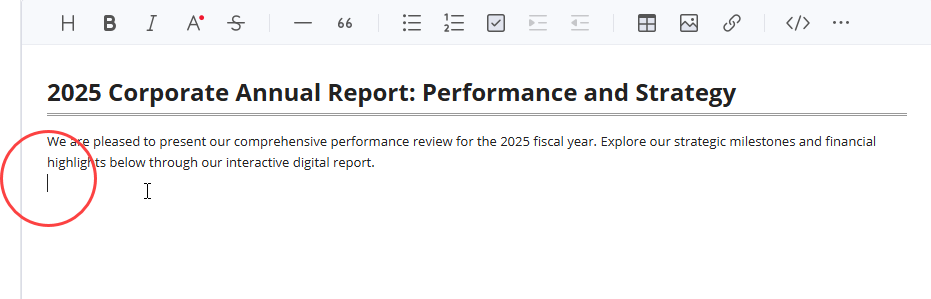
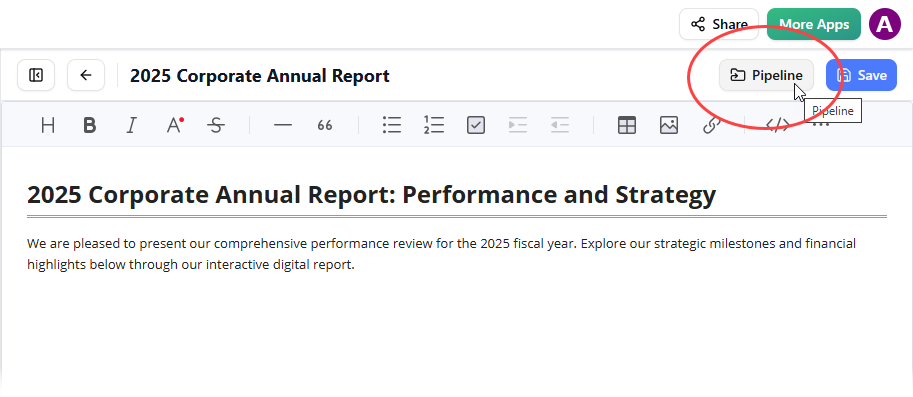
- Click the Pipeline button located at the top right
- Open the Library tab; you will see the flipbook you sent from VP Online
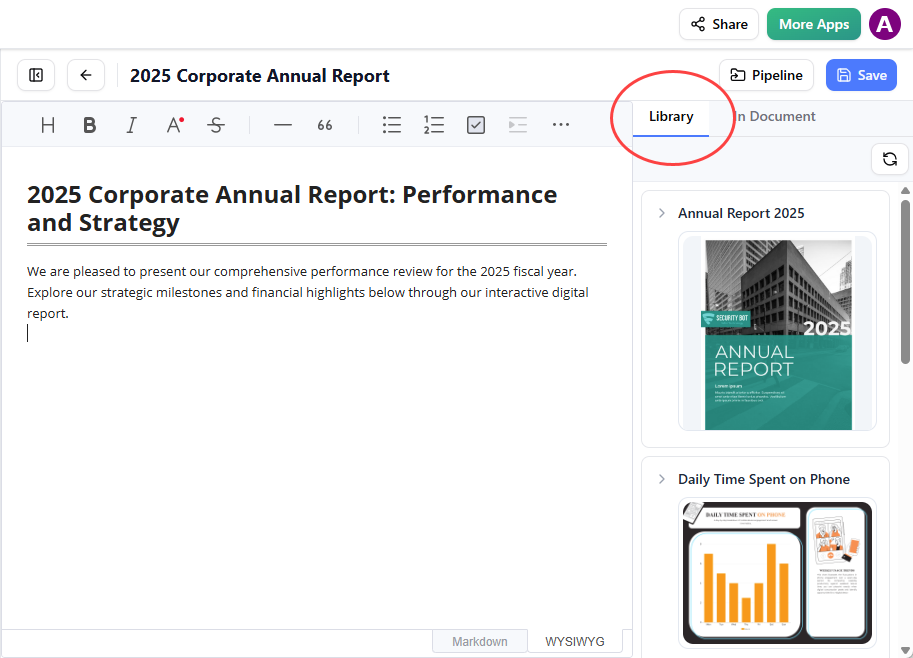
- Click on the flipbook to insert it
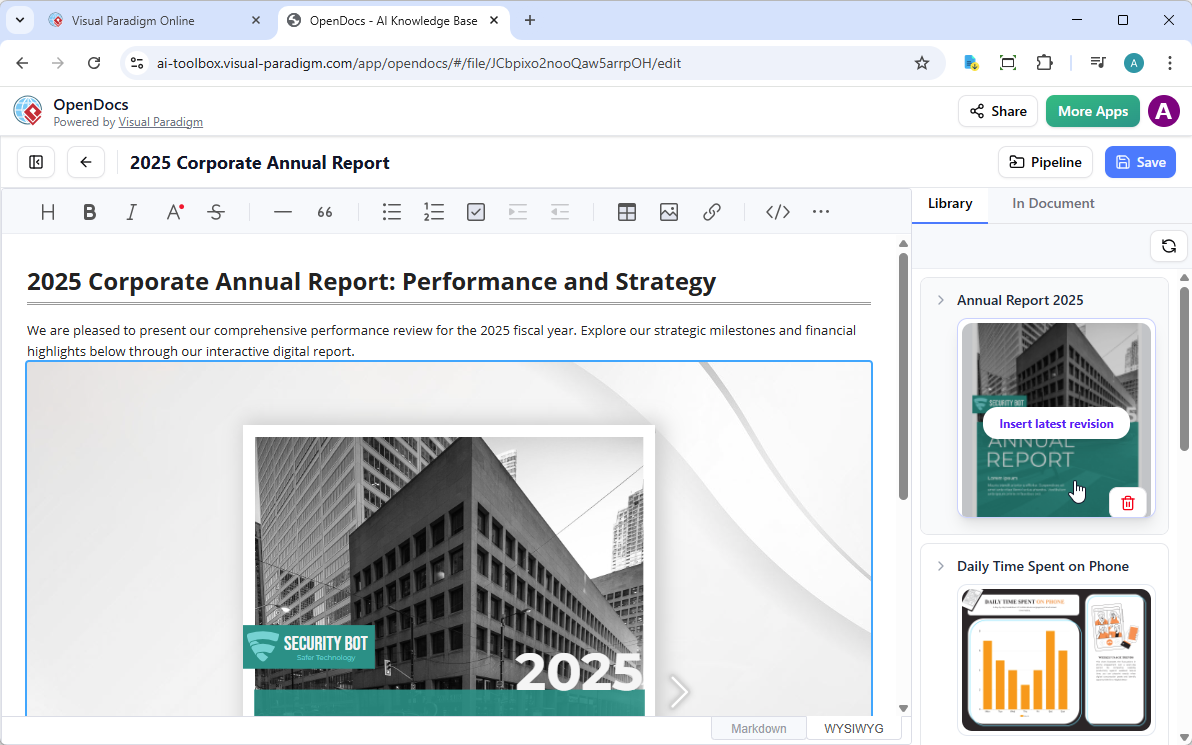
Note: In Edit mode, the flipbook remains static. To interact with it, simply save your changes and exit Edit mode.
Embedding a Bookshelf
The process is identical—simply select your published bookshelf from the Pipeline Library tab instead of an individual flipbook.
Part 5: Publishing to WordPress and Your Favorite Websites
WordPress Page Export: Step-by-Step
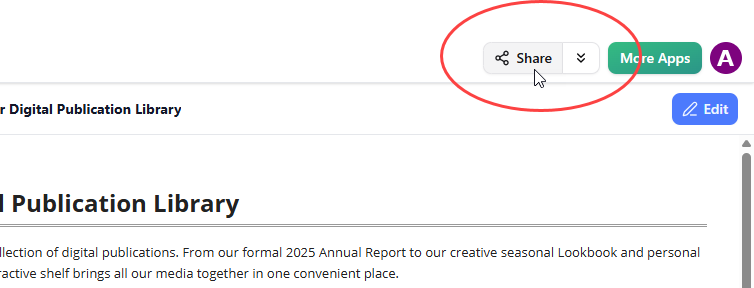
- Open your knowledge base in OpenDocs and click the Share button at the top right corner
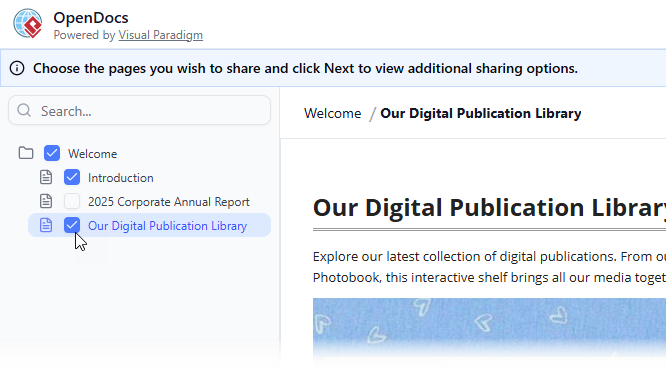
- Enter page selection mode. On the left panel, tick the checkboxes for the exact pages (and sub-pages) you want to include
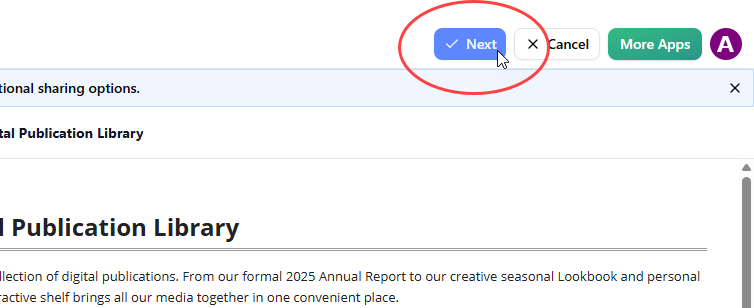
- Click Next
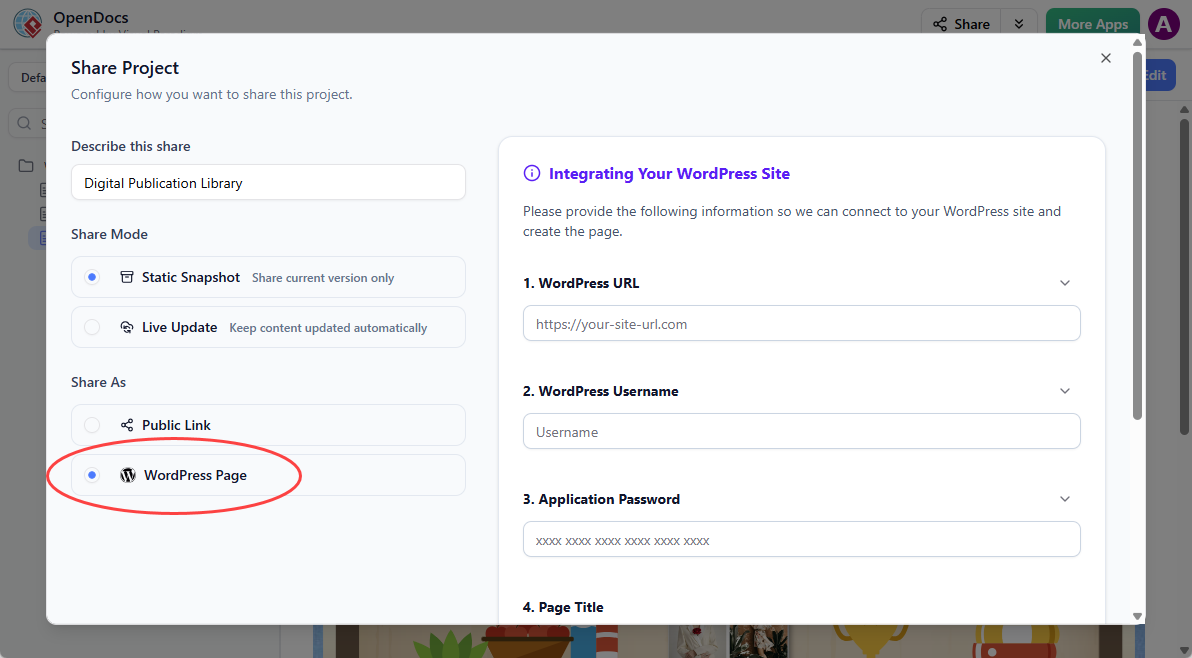
- Describe your share — provide a short, clear description of the content
- Choose your Sharing Mode:
- Static Snapshot: Archived version for milestones or formal releases
- Live Update: Content stays synchronized with future OpenDocs edits
- Under Share As, select WordPress Page
- Prepare your WordPress site (one-time setup):
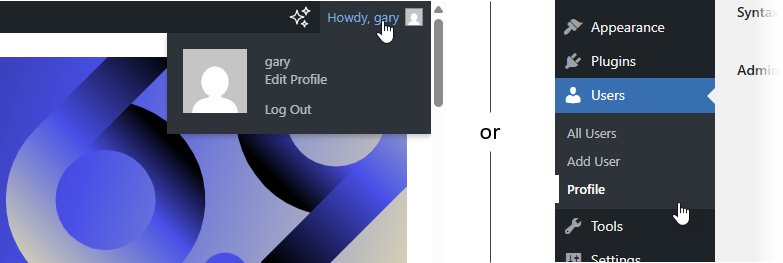
- Log into your WordPress dashboard
- Go to your Profile → Application Passwords
- Enter a name like “Visual Paradigm OpenDocs” and click Add Application Password
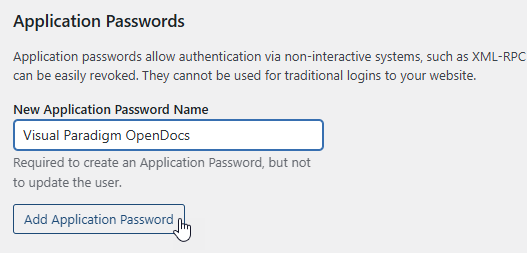
- Copy the generated password immediately

- Back in OpenDocs, fill in the connection details:
- WordPress URL, username, Application Password
- Page title and unique slug
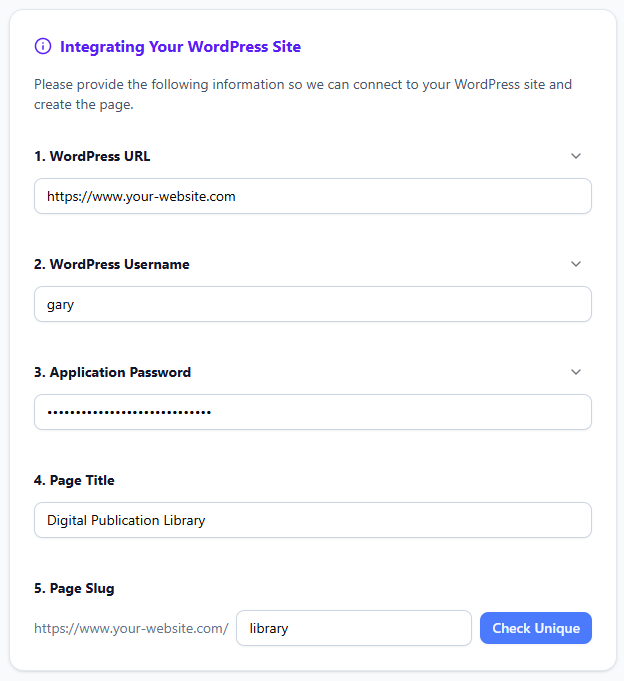
- Click Check Unique, then Publish to WordPress

The process usually completes in seconds. Once published, visit your new WordPress page to view the embedded OpenDocs content.
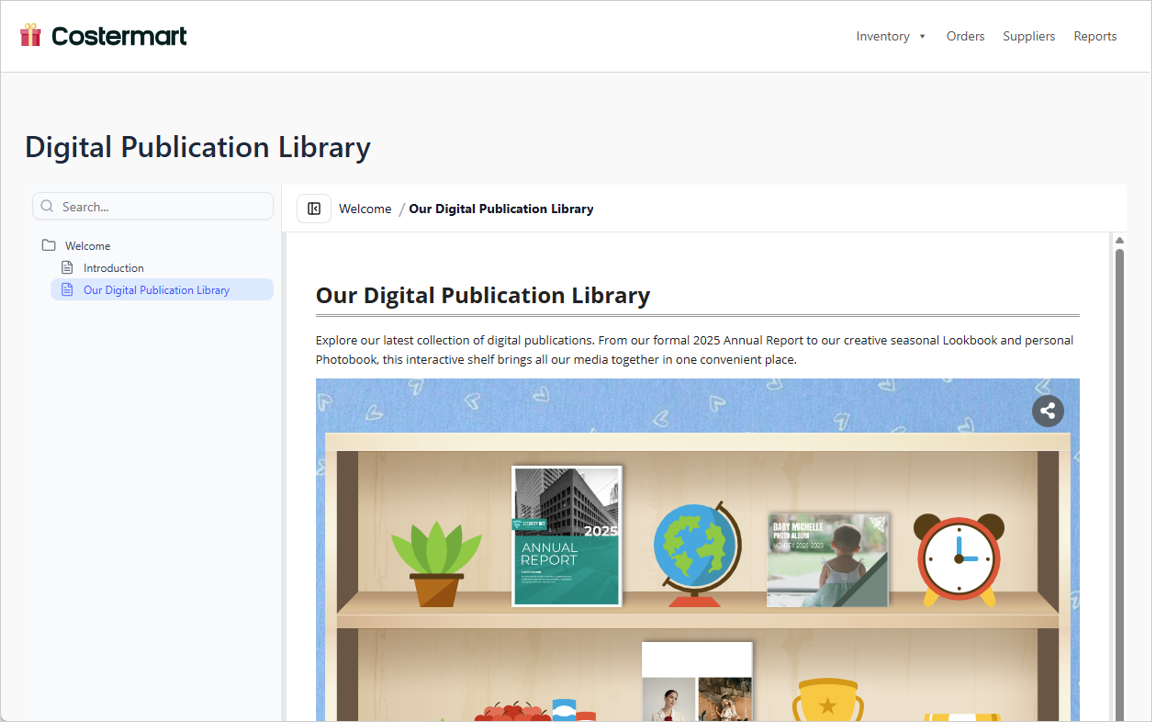
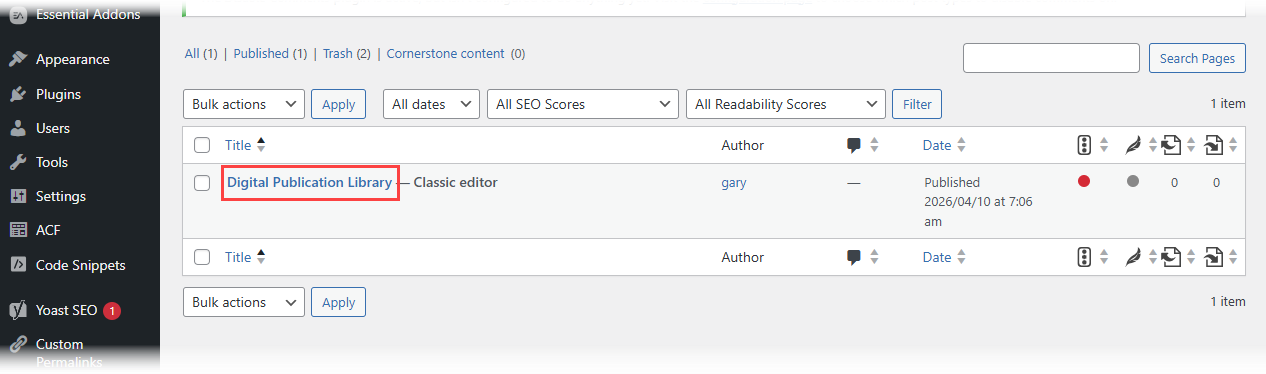
You can also find and further customize the page under Pages in your WordPress admin.
Embedding on Any Website (Non-WordPress)
Prefer more control? Use the HTML Embed Code option:
- Follow steps 1-5 above
- Instead of “WordPress Page,” select Embed Code
- Copy the generated iframe snippet
- Paste into any website’s HTML where you want the content to appear
WordPress Page vs. Embed Code:
- WordPress Page: Fastest for dedicated documentation pages; auto-creates clean layout
- Embed Code: Maximum flexibility; insert into existing pages or non-WordPress sites
Best Practices & Pro Tips
✅ Start Small: Begin with one flipbook + one OpenDocs page before scaling
✅ Use Consistent Branding: Apply the same color scheme and logo across flipbooks, bookshelves, and OpenDocs
✅ Leverage AI Wisely: Use AI for outlines and drafts, but always review for accuracy and tone
✅ Optimize for Mobile: Test flipbooks on smartphones—responsive design is automatic, but content layout matters
✅ Version Control: Use Static Snapshot mode for compliance documents; Live Update for evolving guides
✅ Security First: Never share sensitive content via public WordPress pages; use access controls in OpenDocs
✅ Analytics: Track engagement via WordPress stats or OpenDocs sharing metrics to refine content
Conclusion: Your Documentation, Elevated
Creating compelling, interactive documentation no longer requires a team of developers or expensive publishing tools. With Visual Paradigm’s integrated workflow—Flipbook Maker for engaging content, Bookshelves for organized collections, OpenDocs for intelligent knowledge management, and seamless WordPress integration—you have everything needed to transform how your audience experiences information.
Whether you’re documenting complex technical architectures, training new team members, showcasing client portfolios, or publishing public-facing guides, this ecosystem scales with your ambitions. Start with a single flipbook today, and grow into a fully interactive, multi-platform knowledge hub tomorrow.
Happy documenting!
Reference List
- Share Digital Bookshelf to OpenDocs: Step-by-step tutorial on publishing curated flipbook collections to OpenDocs via the Pipeline integration.
- Share Visual Paradigm Flipbooks to OpenDocs: Official guide for embedding interactive flipbooks created in Visual Paradigm Online directly into OpenDocs documentation.
- A User’s Hands-On Review of Visual Paradigm’s OpenDocs Flipbook Integration: Independent practitioner review covering real-world implementation, usability, and workflow benefits.
- Visual Paradigm Updates Blog: Official release notes, feature announcements, and tutorials for all Visual Paradigm products including OpenDocs and Flipbook Maker.
- A Practitioner’s Review of Visual Paradigm’s OpenDocs Flipbooks WordPress Workflow: In-depth analysis of the end-to-end publishing workflow from flipbook creation to WordPress deployment.
- Publish as Flipbooks Feature: Product page detailing flipbook conversion capabilities, supported formats, and interactive features.
- How to Create a Digital Bookshelf: General best practices for organizing digital publications into thematic collections (conceptually aligned with Visual Paradigm Bookshelves).
- OpenOffice Doc to Flipbook Converter: Tool-specific guide for converting OpenOffice documents into interactive flipbooks using Visual Paradigm.
- Visual Paradigm for Microsoft Office Add-in: Microsoft Store listing for the Office add-in that enables diagram insertion directly into Word, PowerPoint, and Outlook.
- From Model to Manual: A Software Engineer’s Guide to Syncing Visual Paradigm Desktop Diagrams with OpenDocs: Technical walkthrough for integrating architecture diagrams and models into living documentation.
- Showcase My Flipbook with a Bookshelf: Blog tutorial on theming, organizing, and presenting flipbooks using the virtual bookshelf feature.
- Virtual Bookshelf Feature Overview: Official documentation for the bookshelf functionality, including supported formats and sharing options.
- Visual Paradigm’s Flipbook Maker: A Game Changer for Interactive Content: Editorial piece highlighting use cases, ROI, and creative applications of the flipbook tool.
- Introducing Visual Paradigm Flipbook Maker: Your Ultimate Choice in Digital Publishing: Third-party announcement and feature spotlight on the flipbook maker launch.
- Visual Paradigm Online Platform: Main product hub for the cloud-based diagramming and content creation suite.
- Introducing the AI Flipbook Generator: Release post detailing AI-assisted content creation, outline generation, and illustration features.
- AI Flipbook Generator Launch Announcement: Official launch coverage with use cases, prompts guide, and integration notes.

