


By a Productivity-Focused Technical Writer | April 2026
Introduction: Why I Tested OpenDocs
As someone who constantly juggles technical documentation, process diagrams, and team knowledge bases, I’ve tried countless tools—from Notion and Confluence to Obsidian and Mermaid. What I’ve always missed is a seamless way to combine rich text and professional diagrams in one place without constant tab-switching or format headaches.
When I heard about Visual Paradigm OpenDocs—a web-based knowledge hub with built-in rich text editing, AI-powered diagram generation, and hierarchical organization—I decided to put it through its paces. Over the past few weeks, I’ve used it to document a personal project workflow, collaborate with a small remote team, and test its newest April 2026 features. Here’s my comprehensive, third-party review of what works, what surprises, and who should consider making OpenDocs their documentation home.
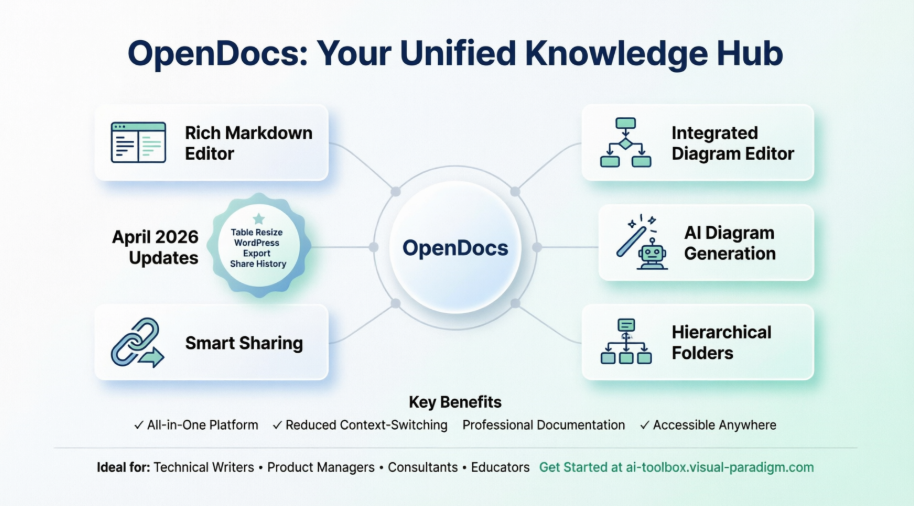
First Impressions: Clean, Focused, and Ready to Create
Launching OpenDocs feels refreshingly lightweight. There’s no desktop install, no complex onboarding—just a welcome screen that lets you jump straight into creating. The interface is thoughtfully minimal: a collapsible sidebar for folders, a central editing canvas, and intuitive toolbar actions.
Core Strengths: Where OpenDocs Truly Shines
🗂️ Hierarchical Organization That Scales
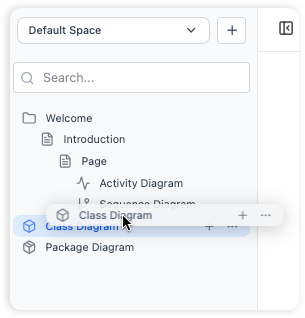
Organization: Organize your documents and diagrams in a familiar tree-like structure with nested folders.
One of OpenDocs‘ most powerful features is its folder structure. You can create nested folders, drag-and-drop pages to reorganize, and build a logical knowledge architecture that grows with your projects. Whether you’re documenting a single product feature or an entire company wiki, the tree view keeps everything navigable without overwhelming complexity.
🎨 Integrated Diagram Editor: No More Context Switching
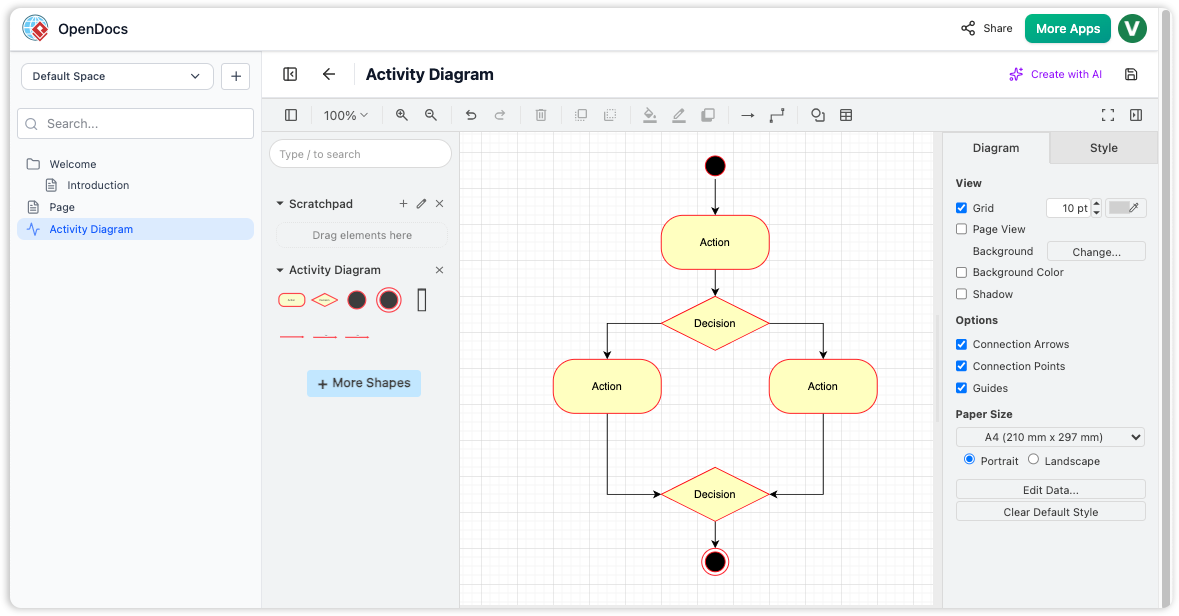
OpenDocs interface showing the integrated diagram editor with a sample Activity Diagram featuring actions, decisions, and flow connectors.
This is where OpenDocs differentiates itself. Instead of exporting to Lucidchart or draw.io, you create diagrams right alongside your text. The editor includes:
- Flowcharts, UML diagrams, mind maps, and network diagrams
- A vast library of shapes, connectors, and styling options
- Drag-and-drop canvas editing with alignment guides
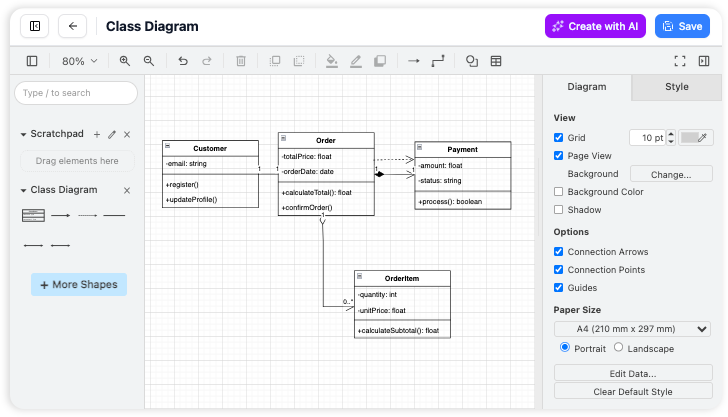
Create diagrams directly on your page with the built-in visual editor.
🤖 AI-Powered Diagram Generation: From Text to Visual in Seconds
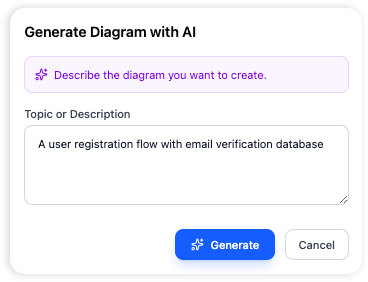
AI-Powered Diagram Generation: From a sentence to a diagram instantly.
The AI feature is genuinely impressive. Type a plain-English description like “User login flow with error handling and password reset,” and the AI generates a complete, editable flowchart. It’s not perfect for highly complex logic, but for brainstorming, onboarding docs, or process mapping, it cuts diagram creation time by 80% or more.
April 2026 Updates: Meaningful Enhancements for Power Users
Visual Paradigm doesn’t rest on its laurels. The recent updates address real-world documentation pain points:
📐 Flexible Page Width & Interactive Table Resizing
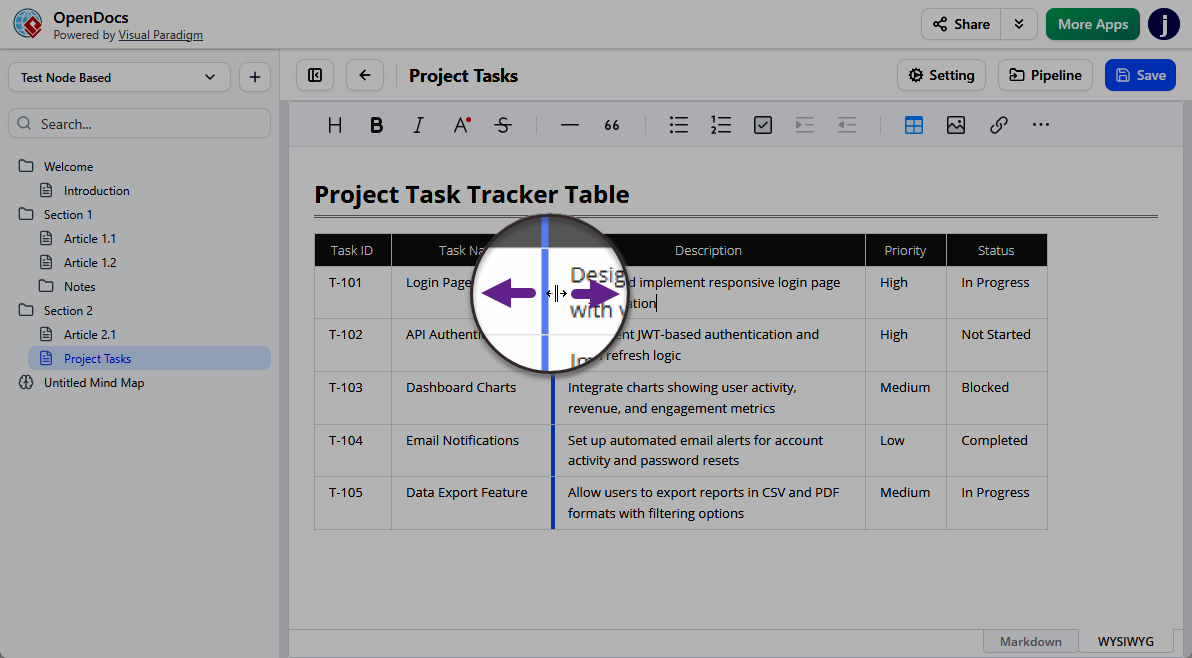
Resizing table columns in OpenDocs: Drag-and-drop column resizing for better data presentation.
The new drag-and-drop table column resizing is a small feature with huge impact. No more awkward text wrapping or wasted white space. Combined with adjustable page width settings (narrow for focused writing, wide for complex diagrams), your documentation can finally adapt to your content—not the other way around.
🌐 Expanded Sharing & Integration Options
- Export to WordPress: Publish knowledge base pages directly to your WordPress site as fully functional content—ideal for public documentation or client portals.
- Flipbook Integration: Embed interactive Visual Paradigm Flipbooks into OpenDocs pages for dynamic manuals and reports.
- Digital Bookshelves: Curate multiple flipbooks into a themed library and embed it anywhere in your knowledge base.
- Website Embedding: Use generated HTML code to integrate OpenDocs content natively into your blog or company website.
🔒 Advanced Content Control
- Static vs. Live Sharing: Choose between a frozen snapshot for formal releases or a live-synced link for evolving docs.
- Browse Share History: A new dashboard lets you audit which pages were shared, when, and manage active links—critical for compliance and content governance.
Practical Workflow: How I Use OpenDocs Daily
Here’s my typical OpenDocs workflow for a new project:
- Structure First: Create a top-level project folder, then sub-folders for “Requirements,” “Diagrams,” “Meeting Notes,” and “References.”
- Visualize Processes: Use the diagram editor (or AI generator) to map user journeys, system architectures, or decision trees—embedding them directly in relevant pages.
- Organize & Refine: Drag pages into logical order, add cross-links, and use folder hierarchy to mirror project phases.
- Share Strategically: Generate a live link for team collaboration or a static snapshot for stakeholder reviews. For public docs, export to WordPress or embed via HTML.
Honest Limitations to Consider
No tool is perfect. Here are OpenDocs’ current constraints based on my testing:
- Limited Export Options: While sharing links is seamless, exporting to PDF or Word isn’t natively supported (workaround: print to PDF via browser).
- No Built-in Version History: For critical docs, maintain manual backups or use external version control.
- Sharing is All-or-Nothing: You can share an entire knowledge base, but not individual pages or folders—great for context, less ideal for granular permissions.
These aren’t dealbreakers for most use cases, but teams with strict compliance or complex permission needs should evaluate carefully.
Who Should Use OpenDocs?
✅ Technical Writers & Documentation Teams: Combine prose, code, and diagrams in one searchable hub.
✅ Product Managers & Agile Teams: Map user stories, workflows, and roadmaps with living documentation.
✅ Consultants & Freelancers: Create polished, client-ready knowledge bases with minimal overhead.
✅ Educators & Trainers: Build interactive course materials with embedded diagrams and flipbooks.
✅ Personal Knowledge Managers: Organize notes, projects, and references with professional-grade structure.
❌ Teams needing granular page-level permissions may want to supplement with external access controls.
❌ Organizations requiring offline access should note OpenDocs is web-only (though works on any modern browser).
Conclusion: A Unified Hub That Delivers on Its Promise
After weeks of daily use, Visual Paradigm OpenDocs has earned a permanent spot in my productivity stack. It solves a real problem: the fragmentation between text documentation and visual modeling. By bringing rich text editing, professional diagramming, AI assistance, and smart organization into one intuitive interface, it reduces context-switching and elevates the quality of shared knowledge.
The April 2026 updates—especially table resizing, WordPress export, and share history tracking—show a team listening to user feedback and iterating thoughtfully. While it has limitations around imports and exports, its core strengths in creation, organization, and collaboration make it a standout choice for anyone serious about structured, visual documentation.
If you’re tired of juggling five different tools to document one project, give OpenDocs a try. Start small: create a folder, write a page, generate a diagram. You might just find your new knowledge home.
References
- Visual Paradigm Desktop Product Updates: Overview of the latest product enhancements and feature releases for Visual Paradigm tools including OpenDocs.
- Visual Paradigm Updates Hub: Central repository for all Visual Paradigm product announcements, release notes, and feature tutorials.
- Export OpenDocs to WordPress Page: Step-by-step guide on publishing OpenDocs knowledge base content directly to WordPress sites.
- Share Visual Paradigm Flipbooks to OpenDocs: Tutorial on integrating interactive flipbook content into OpenDocs documentation pages.
- Digital Bookshelf Integration for OpenDocs: Learn how to curate and embed collections of flipbooks as digital bookshelves within your knowledge base.
- OpenDocs Embed HTML Code Tutorial: Instructions for embedding OpenDocs knowledge bases into external websites using generated HTML code.
- Focus on Content with Pageless Documents: Industry perspective on flexible document layouts and how adjustable page widths improve content presentation.
- OpenDocs Browse Share History Guide: Dashboard tutorial for tracking shared pages, managing active links, and auditing access history.
- Seamlessly Integrate Visual Paradigm OpenDocs into WordPress: Comprehensive external guide on embedding AI-powered OpenDocs knowledge bases into WordPress websites.

